
This is just a quick guide on how to create a pop over view controller over other view controller with Present As Popover Segue.
In UI Storyboard, we will create two view controllers. The first UIViewController we will add a UIButton to active other UIViewController as Pop over, and the other UIViewController will just contains a UILabel. (I created a class for the pop over view controller as PopOverViewController, but UIViewController will be fine)
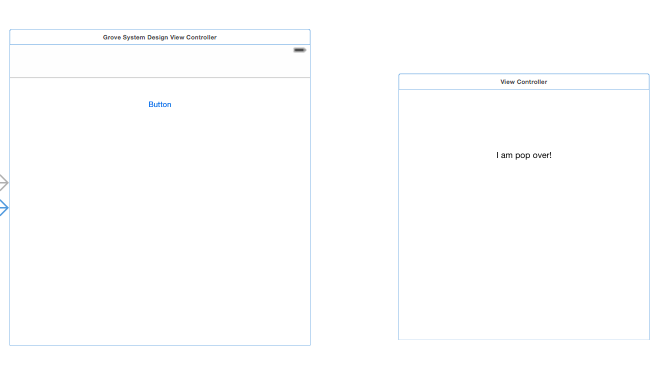
Also, the view controller that will be used as pop over, we will set it to freeform and select your own size in the size inspector.
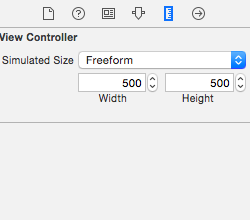
In Attributes Inspector, also change the Size to Freeform, and no Status Bar. Select Use Preferred Explicit Size and set the size.
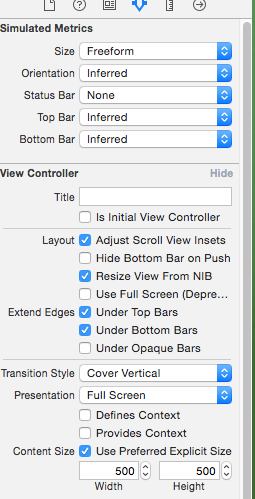
Next, we will the connect the button to the pop over controller with popover presentation segue.
Give the segue an Identifier. In this example, I used “popoverSegue“.

Now, coding time. In the parent viewcontroller(the one with UIButton), first add a
UIPopoverPresentationControllerDelegate protocol to the class.
then add this:
You should be familiar with the first function. We want to set up the the pop over viewcontroller with style as UIModelPresentationPopover, and set the popoverPresentationController delegate to the parent controller, so that the parent controller will take care the popover viewcontroller presentation style.
Since we don’t want any other style but only pop over style when the segue performs, and the delegate function
adaptivePresentationStyleForPresentationController:
will do this for us, and tell the APP that we only want the pop over style.
Reference:
https://richardallen.me/2014/11/28/popovers.html
